Use network discovery
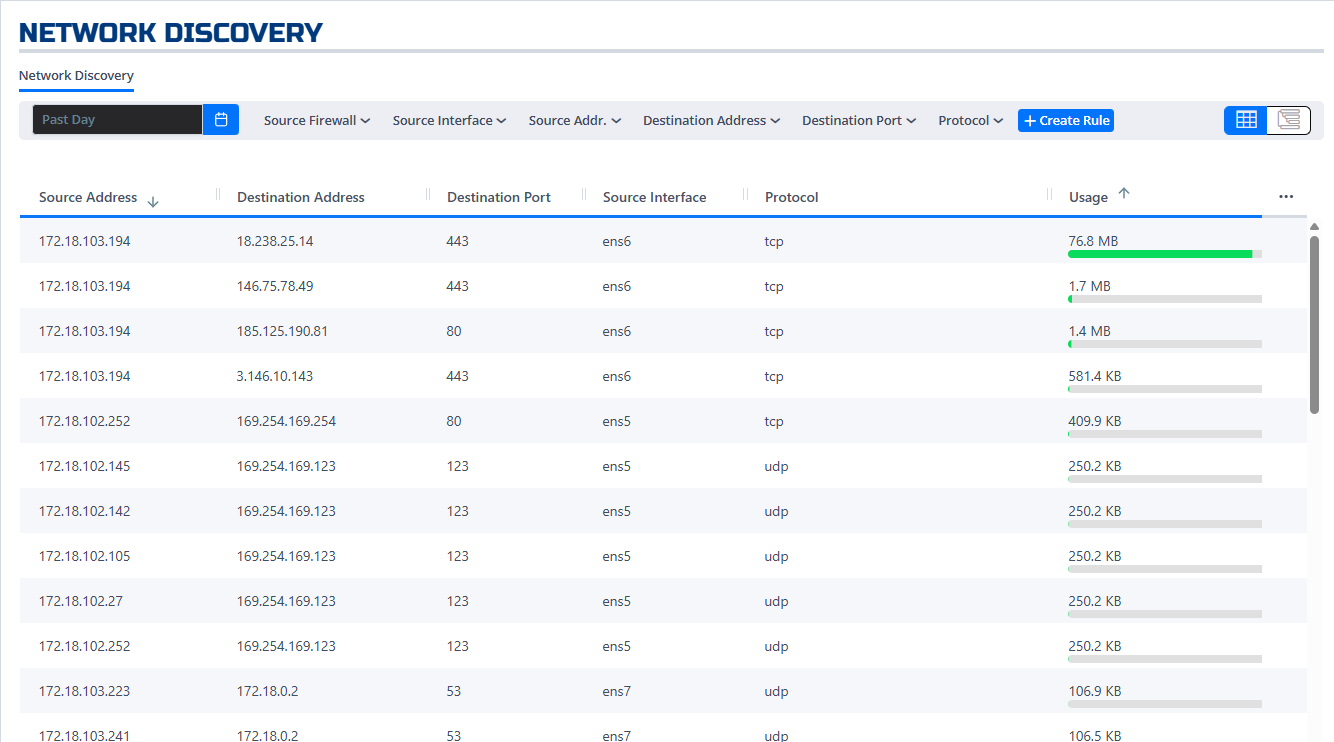
The Network Discovery page shows observed network flows and traffic patterns across your firewalls. Use it to explore what's happening on your network, identify unknown or unwanted traffic, and create firewall rules directly from what you see.
When discovery mode is enabled on an interface, the firewall allows all traffic through, regardless of any rules configured for that interface. Discovery mode can run indefinitely. You decide when you've seen enough traffic, then disable it to begin enforcing rules.
Filter network flows
Use the search and filter fields at the top of the page to narrow down the flow list. You can filter by any column:
| Column | Filter by |
|---|---|
| SourceFirewall | Firewall name |
| SourceInterface | Interface name (e.g., eth0) |
| SourceAddr | Source IP address or subnet |
| DestinationAddr | Destination IP address or subnet |
| DestinationPort | Port number or range |
| Protocol | Protocol (TCP or UDP) |
Combine filters to isolate specific traffic for analysis or rule creation.
Switch between grid and roll-up view
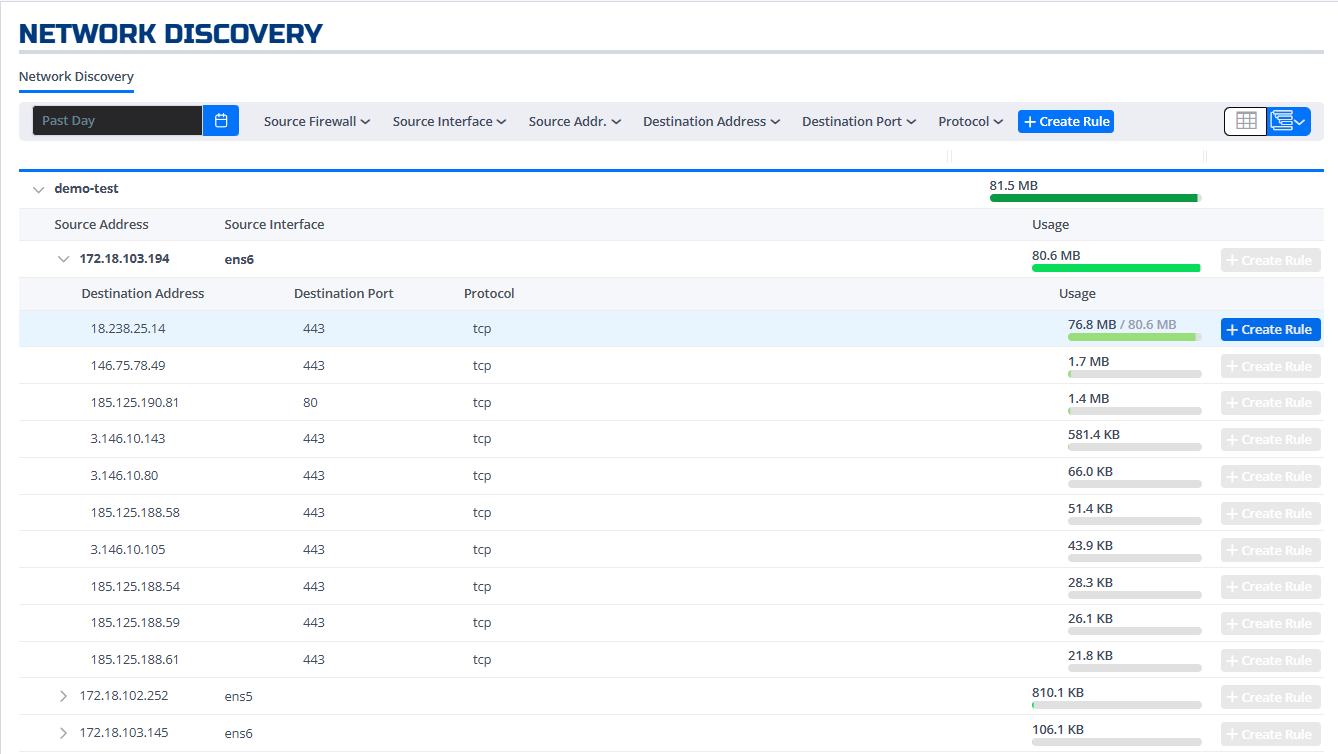
By default, the page shows the Grid View, which lists each flow individually. To group flows by firewall, click the View icon at the top right of the table to switch to Roll-Up View. Click it again to return to grid view.

Roll-up view makes it easier to spot patterns and high-level trends across many flows.
Create a rule from a discovered flow
-
On the Network Discovery page, find the flow you want to allow or block.
-
Click the
 icon next to the flow.
The rule creation dialog opens, pre-filled with the source, destination, port, and protocol from that flow.
-
Adjust the rule details as needed and set the action to Allow or Block.
-
Click Done to save the rule. It becomes active immediately and appears in your firewall's rule set.
For more on managing rules, see Manage firewall rules.