Manage your license
Use this page to activate your NetFoundry zLAN console with a license and to view, update, or replace it later.
If you're just getting started, see the Get started guide. On first sign-in, the console prompts you to enter a license key before you can proceed.
First-time activation
When you sign in to the zLAN console for the first time, you'll be prompted to add a license.
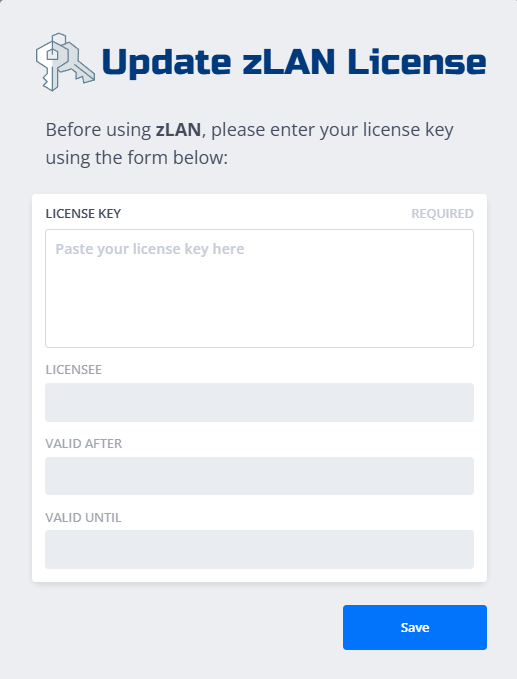
- Paste your license key into the field.
- Click Activate.
If the license is valid, the console unlocks and you can continue setting up your environment.

note
- If you don't have a license yet, contact NetFoundry Support or your account representative.
- The console validates the license locally; ensure you paste the full key exactly as provided.
View and update the license
You can review license details and update or replace the key at any time from System Settings.
- In the console, navigate to System Settings.
- Open the License section to view your current license information (edition, expiration, usage).
- To replace or renew, paste the new key and click Save.
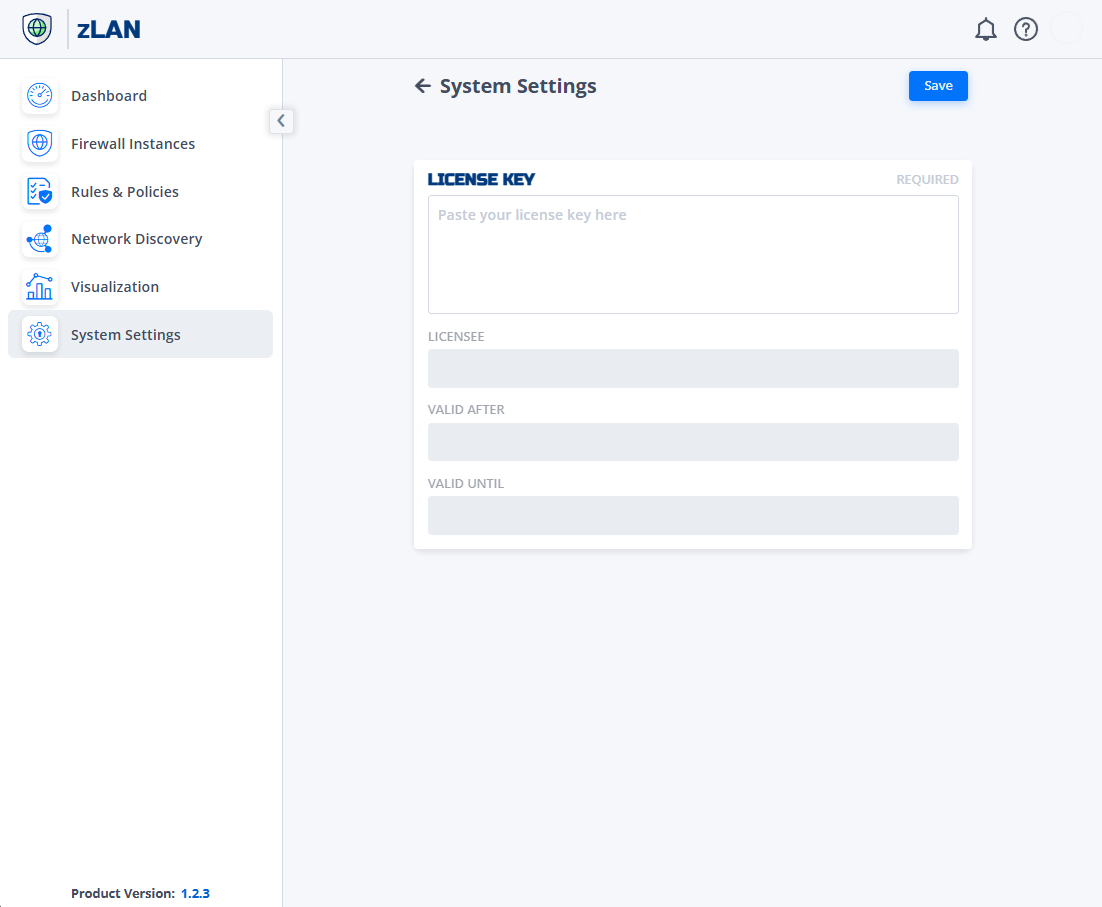
What you can see here:
- Licensee
- Activation date
- Expiration date
Renew or replace your license
- To renew before expiration, paste the new key. The console immediately reflects the updated term and features.
- If your license has expired, the console prompts you to update it when you sign in.
Troubleshoot license issues
- Invalid key: Double-check for extra spaces or missing characters. Try pasting again.
- No license prompt: Go to System Settings → License to add or replace the key.
- Still stuck? Capture a screenshot and open a support ticket with your instance details.